
Unreal Engine Optimization
Frame Time vs Frame Rate & Stat Commands

Frame Time (ms) vs Frame Rate (FPS)
The Frame time (milliseconds) is a linear way of looking at performance, while the frame rate is non-linear. This means that the same change in FPS doesn't always represent the same change in performance.
For example, a drop from 10 ms to 8 ms, the improvement is of 2 ms, just like a drop from 12 ms to 10 ms. BUT, a drop from 60 FPS to 50 FPS does not represent the same performance loss as a drop from 30 FPS to 20 FPS.
FPS and Frame time have an inverse relationship: the more time your computer needs to render one frame, the fewer frame it can render in one second.
More time per frame -> Fewer frames per second
Less time per frame -> More frames per second
Since one second contains 1000 milliseconds, we can easily convert frame time into FPS and viceversa. The formula is simple:
$$FPS= 1000/Frametime$$
$$Frametime = 1000/FPS$$
It's great to memorize (or have at hand) these three frame duration values:
· 30 FPS = 1000 / 30 = 33.33 ms
· 60 FPS = 1000 / 60 = 16.67 ms
· 90 FPS = 1000 / 90 = 11.11 ms
As a summary:
Frame Time (ms) | Frame Rate (FPS) |
- Linear | - Non Linear |
In short: FPS tell us how the game feels. Frame time tells us how much things cost.
And that's why, when profiling a game, we usually look at frame time instead of FPS.
Stat Commands
Let's start with the fun part!
Stat commands are used to display real-time performance metrics on our screen while running our game in Play In Editor (PIE) mode.
We can find the console in the bottom left area:

There are hundreds of them (you can check Unreal Engine Documentation), but we are going to focus on the ones I use the most:
Stat FPS
Stat FPSdisplays Frames per Second and Frametime. This doesn't help us much when trying to identify whether the cost comes from the CPU or the GPU.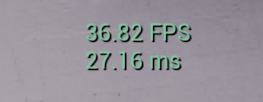
Stat Unit
Stat Unit. Much more specific command. It displays more useful information for profiling, showing how much time each part takes ( Frame, Game, Draw, GPU and RHIT).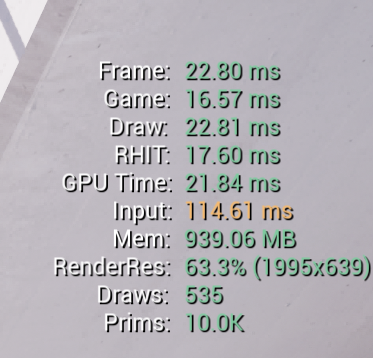
Quick info:
· Frame - The wall time between game thread frames. **
· Game - Gameplay and game logic.
· Draw - CPU preparing rendering work.
· GPU - GPU rendering the frame
· RHIT - Sending rendering commands to the GPU.
(You can find the complete info. in UE documentation)For now, the highest time (or closest to Frame) usually gives us our first clue about where the bottleneck is.
· Input - Delay between player input and the result on screen.
· Mem - Memory currently used by the game.
· RenderRes - Internal resolution the game is rendering at. ( lower res = fewer pixels for the GPU to render)Remember not to fully trust Draws and Prims when using the command in the Editor, because they also include unrelated level information, like the Editor UI.
For example, If you use theStat Unitcommand in an empty level, you will still see values for these metrics.Stat UnitMax
Stat UnitMaxadds the column "Max", where we can see the peaks of the same metrics displayed by thestat unitcommand.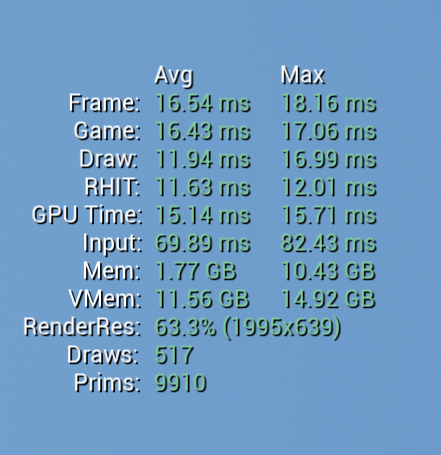
Stat Unitgraph
Stat Unitgraphdisplays a graph for eachstat unitmetric. It makes it easier to identify performance spikes over time. Each metric has its own color, so we can easily tell them apart.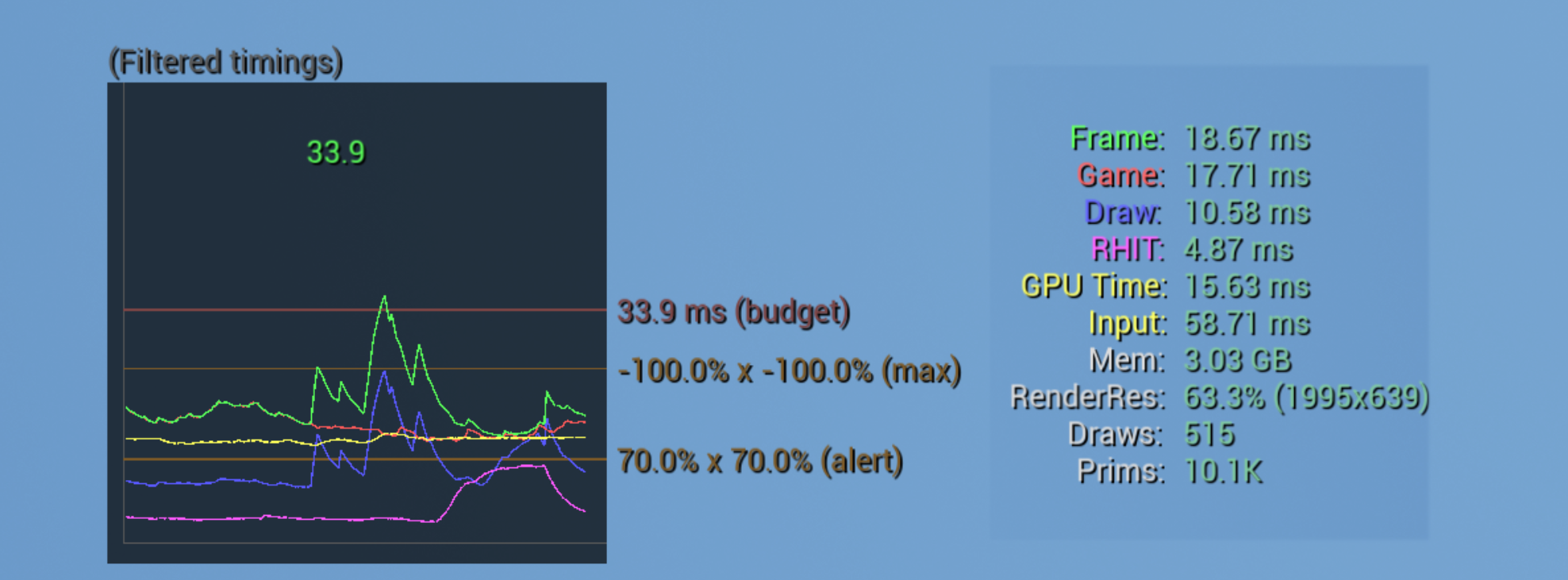
Quick note: The graph also displays budget line. We won't get into frame budgets yet, just keep in mind that this value depends on the project's target and configuration.
Stat Detailed
Stat Detailedgive us a combined view of the information shown bystat FPS,stat unit,stat unitmaxandstat unitgraph. So, if you are going to use all the commands mentioned above, it's easier to usestat dateiledinstead.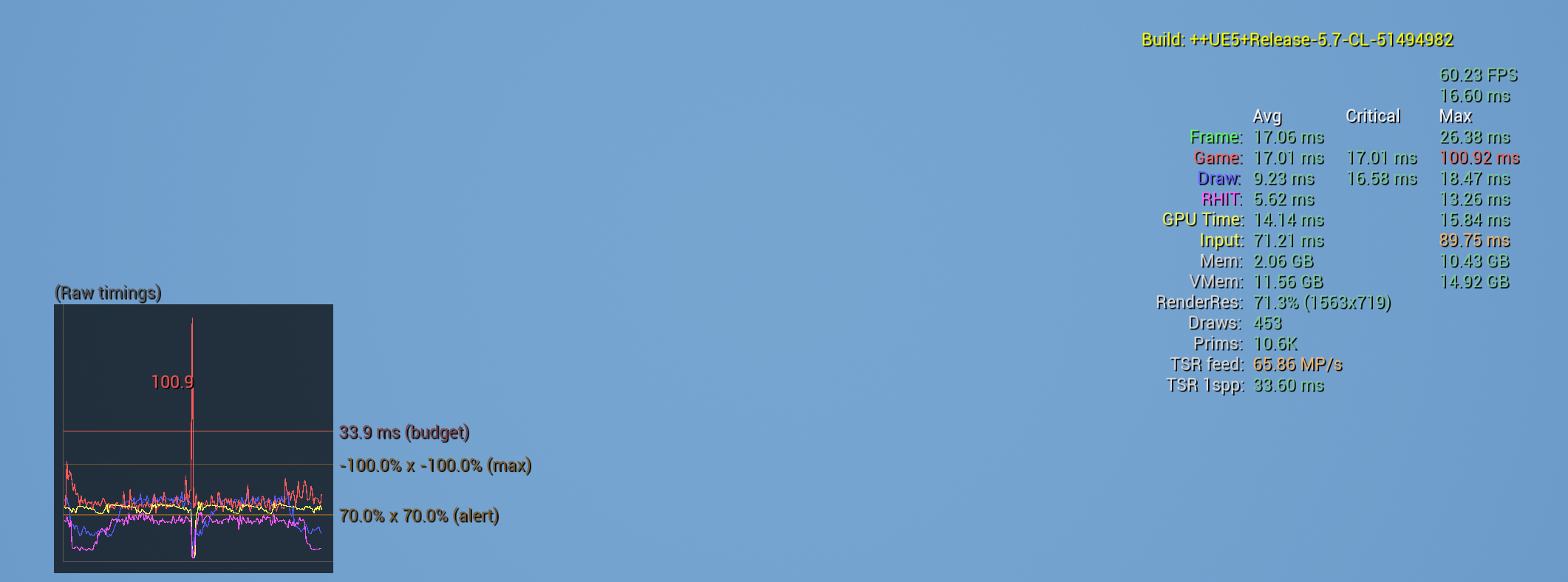
Stat GPU
Stat GPUbreaks down the GPU frame into different rendering passes, showing how much time is spent on each one (ww'll talk about rendering passes later).
Is like a simplified text version of the GPU Visualicer (we havent covered that yet).Quick warning: Don't expect all the timings displayed by
Stat GPUto add up the total GPU time. Some passes ca be part of other tasks, so their time may already be included in other value.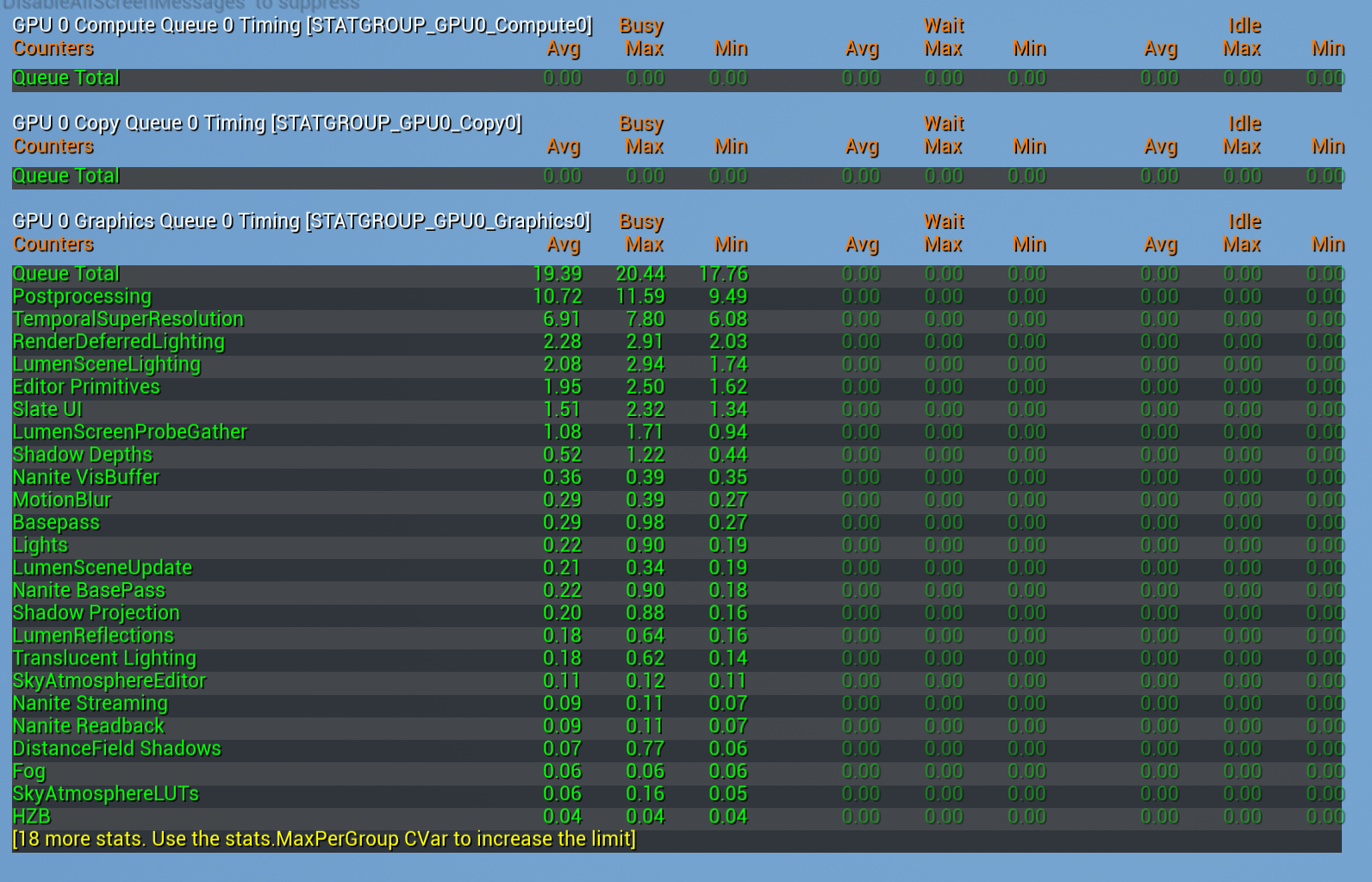
Stat Game
Stat Gamebreakd down the Game Thread into different gameplay systems (Tick, Physics, Animation, AI, etc.). This will help us to identify which one is responsble of the CPU costs.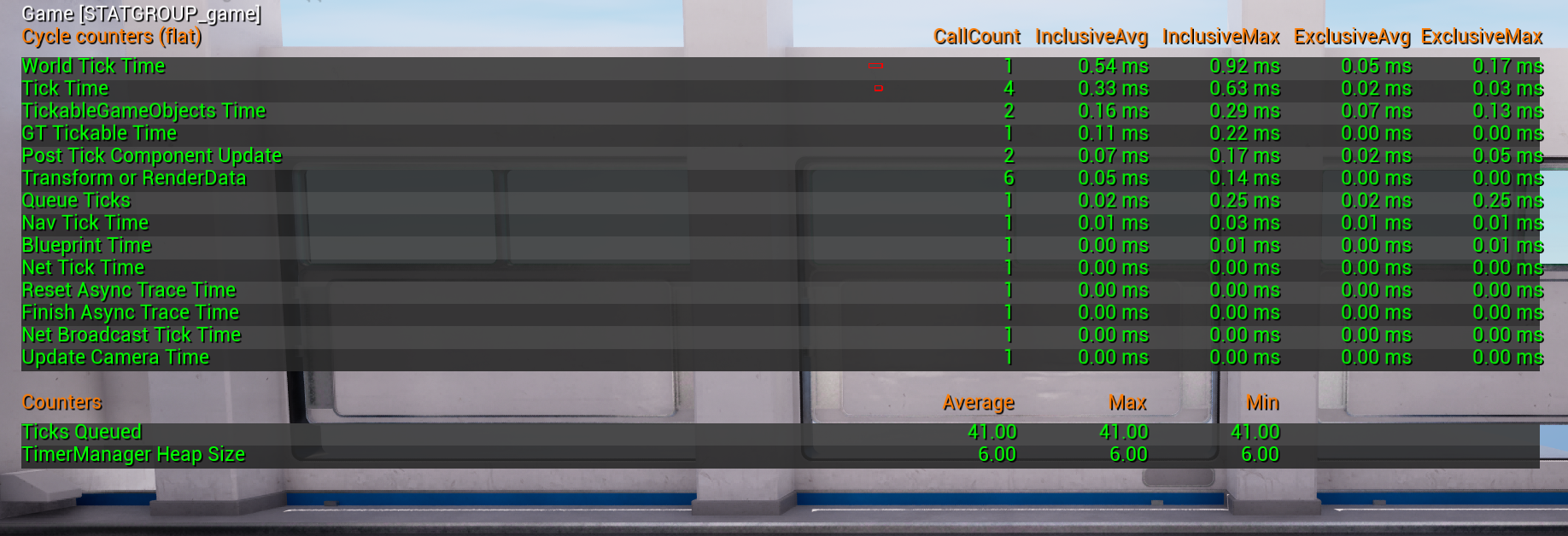
Stat InitViews
Stat Initviewsdisplays information about visibility culling, includin how long it took and how effective it was. Helps to understand what is loading the render thread.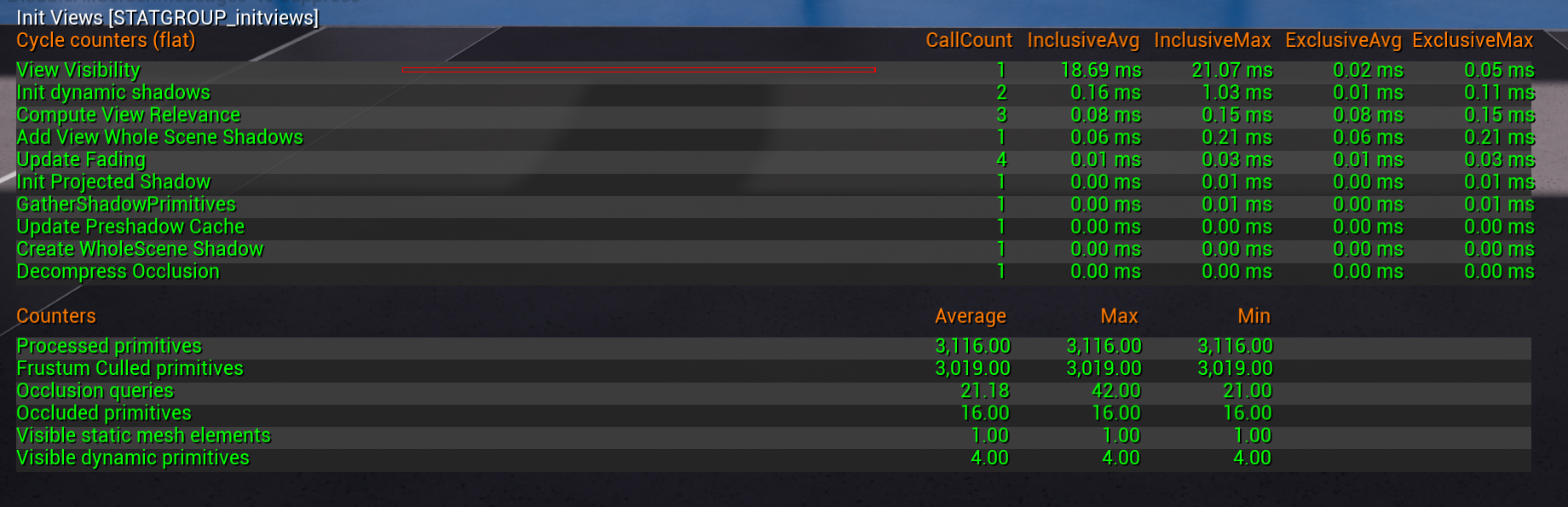
Last but not least
Stat SceneRenering- Displays detailed rendering statistics, including draw calls, decals, lights, ray tracing...Stat RHI- Displays low-level rendering statistics, such as memory usage, render targets, texures and GPUStat Engine- General engine statistics. Useful for triangle count of static and skeletal meshes.Stat DrawCount- Detailed draw call data.Stat Foliage- Displays the number of instanced static meshes and their triangle count (not just foliage)Stat Niagara- Detailed view of Niagara systems costs. (We'll cover this in a future post)
These are the commands I use the most in my day to day work. Unreal Engine includes many more profiling commands, but I think these are a great starting point.
Wanted to keep this simple... but you know, sometimes live is hard.
Hope this was useful! :)
[Updated notes]:
** The Unreal documentation is not pretty accurate with this info. related with the frame. You can take a look to Ari Arnbjörnsson presentation "A Frame's Life" for learning more in detail .
(you can go back to the Introduction Post to check the Table of Contents)
